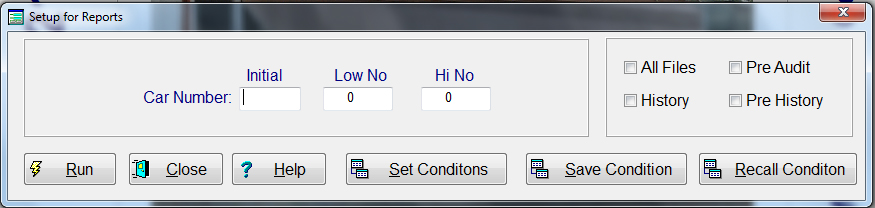
Below is the screen that appears when you select a Setup File by first selecting "Reports","Setup" and than the selection that you want to create the setup file from.
This screen will guide you through the process of creating a setup file that can be used in creating data exchange files or for reports.
When you select from the main menu, "Reports", "Setup" you will have several items to choose from. They are as follows; Car Number, Control Number I, Control Number 2, Lot Number, Lease Number, Car Type, Owner, Invoice Number, Rebill Invoice Number and Manual
Depending on the selection you choose, a screen will appear prompting you for the basic information on that selection. The screen above is on Car Number. You must also select which file or files that you want the to create your setup file on.
The screen give you the ability to further described what you may want or not want in the setup file that you create. This is done by either selecting Conditons or selecting a saved condition by pressing the "Recall Condition" push button.
If you press the Condition push button, the below screen appears
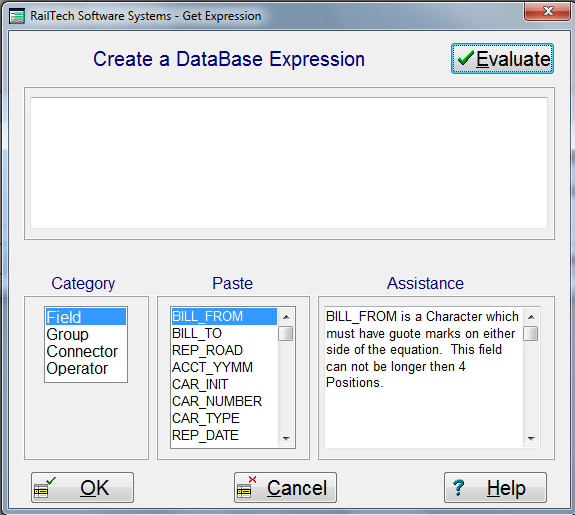
The condition screen is very similar to filtering a report. You can either write the coding in the blank area or click on the
field that you want to start your condition with. Example; If you were looking for all repairs on your setup file to be between
the repair dates of April 1, 2014 and April 30, 2014 and the responsibility code was not equal to 3, you could write that as
follows;
REP_DATE >= {04/01/2014} .and. REP_DATE <= {04/30/2014} .and. RESP <> 3
You can get the symbol needed, such as >= and <= by clicking on the Connector The same is true with selecting an operator, such as .AND. and .OR. . The Group is open ( and close group ). When you click on any symbol, the description appears on the right side of the screen.
You can also read the information on filtering by clicking on "Reports", "How to Query a Report"
Once you have finished with the Condition, you will have the option to save it so that you can recall it with any setup file or simply use it with what you are doing.