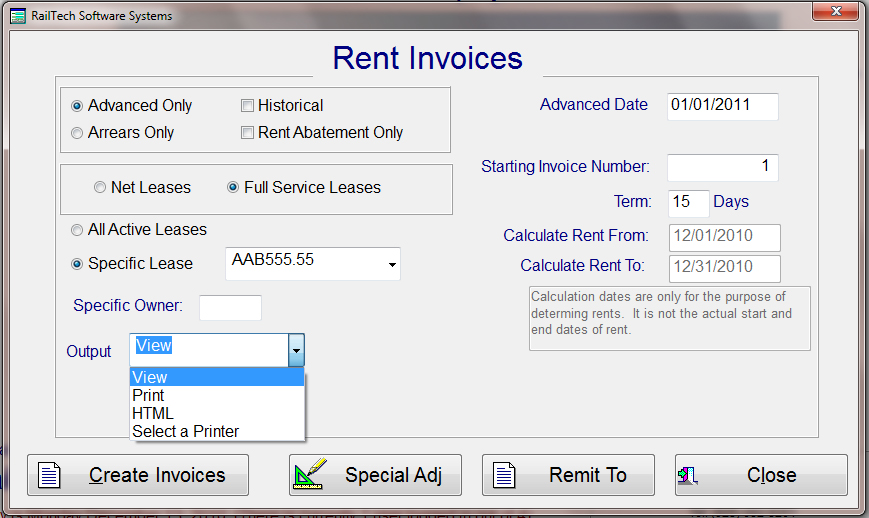
The rental invoicing is primarily for Lessor's, but can also be used by Lessee's for validation purposes. When you create a rental invoice or invoices, the system will always calculate rent payments based on the dates that you want as indicated below. The system will also look at the cars in shop, if any, and will calculate "Rent Abatement", if the lease indicates rent abatement. It will also calculate according to the lease instructions.
The initial screen is for setting up the permaters of creating rent invoices. The system is designed to bill for any given month and year. If the lease payments, also know as rent, if paid on anything other then a monthly rate, it is calculated out to show what the rate would be for the month. It is further calculated out to show what the daily rate is based on the number of days in the selected month.
You must first decide what kind of lease you want the invoice to be stated on, Advance or Arrears. If you choose Advance, you have the option of creating historical advance invoices. You must also decide if the invoice is to be on "Net Leases" or "Full Services Leases".
You can select all leases or a single lease. Next is the Advance or Arrears date that you want all calculations to be based on. What ever date you enter the appropriate dates will appear in the calculated date fields below. Then enter what you want the invoice number to start with. Each invoice number after the first will have then next number in the sequence. The term can be anything from 0 to 99.
Once this information is created, it will always appear whenever you go into this screen. If you change any settings, then those settings will become the default settings.
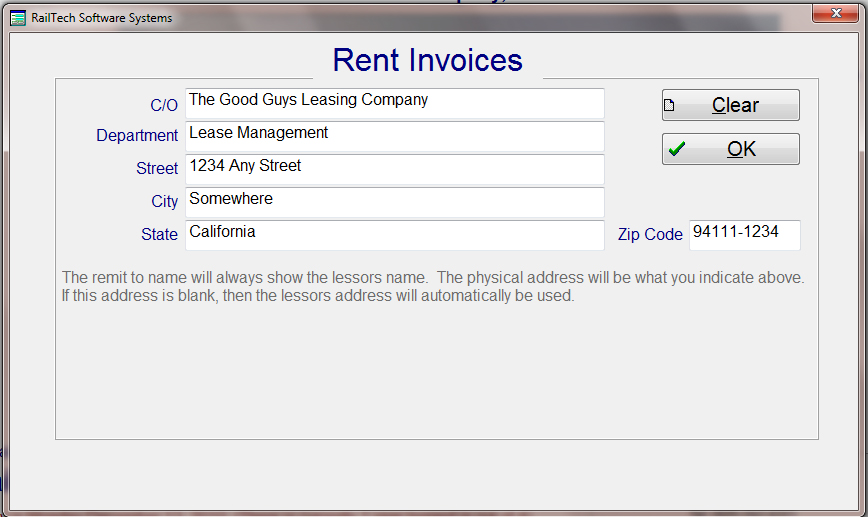
You will notice that at the bottom there are four push buttons. The system by default will show the Lessor's name and address on the invoice for the Remit To. If you have multiple lessor's and/or want the payments to go to a specific address, then you can enter the physcial address by pressing the "Remit To" push button.
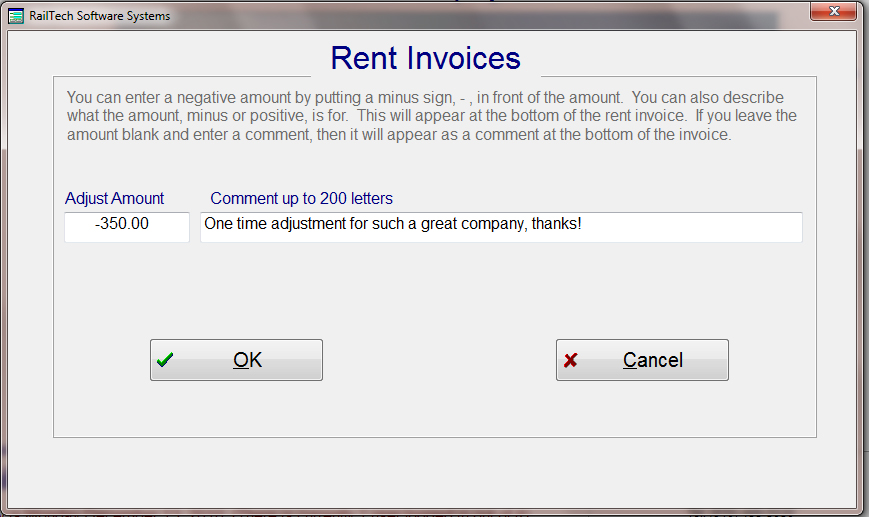
If you are invoicing a "Specific Lease Number", then you will have the option of selecting the push button "Special Adj". This screen has two functions;
1. you can adjust the total amount of a lease up or down by entering either a negative amount or a possitive amount. If you enter an amount, then you must also enter a description of what the amount represents.
2. You can enter a comment by not entering an amount but entering something in the comment field.
The comment or description can be up to 200 characters in length. If you are adjusting the rent invoice, then the comment and amount will appear just prior to the total amount owed. The total amount owed will be adjusted to reflect the adjustment.
If there is no amount, but you have entered a comment, then the comment will appear after the total amount owed with the word "Comment: " prior to the statement.