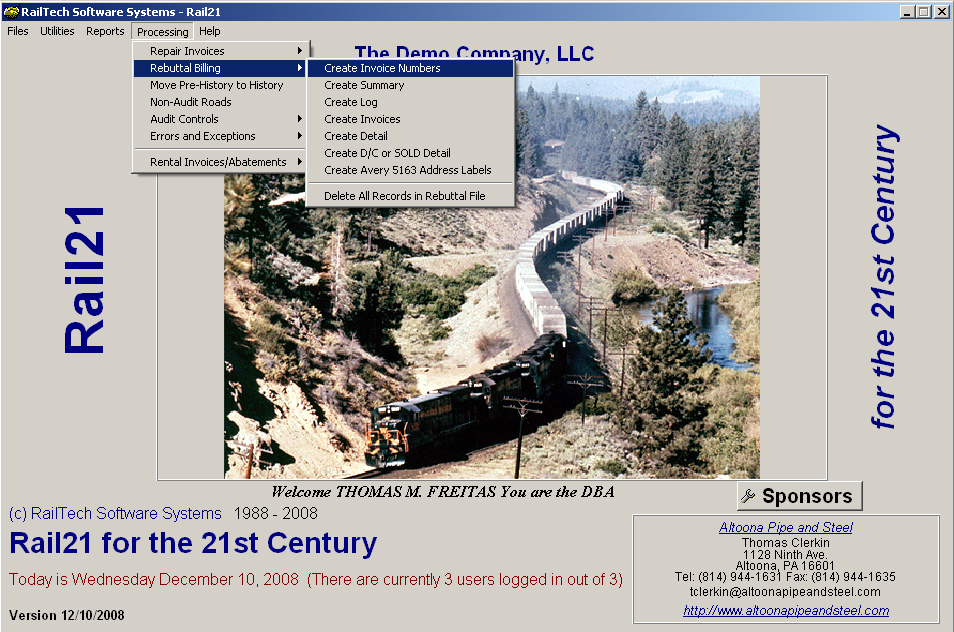
Once a month, and only once a month, you need to perform your rebuttal billing. On the main screen there are several selections for rebuttal billing, see below. You can not do any of them until you first create rebuttal invoice numbers. The rebuttal invoice numbers are in the following format. The first position is either an R for Repairs, a S for Sold Car, or a D for Defect Card invoice. The next two to four positions are the initials of the owner of the equipment. If the car is a Sold car, then the owners initials are substituted for the word SOLD. The next two positions are the last two digits of the year. Then the next two positions are the month with the next two positions being the day. The last two positions are simply a sequence number. Therefore, if a car was owned by RTSS and the rebuttal invoice was created on 02/03/2008 and the repair was for normal rebuttal billing, and this was the first invoice printed, then the invoice number would be: RRTSS08020301
Once you have created your rebuttal invoices, you can create all the reports that go with them. The first report is the Rebuttal Summary. This is simply a report that summarizes all the rebuttal billing by lessor with Sold and Defect Card seperately.
The next report is the Log Sheet, which is a report by lessor, then Lease Number and showing a summary of invoice numbers where the repairs came from.
Now you can create your invoices. After you have created the invoice, you need to create your detail billing repair cards. The detail rebuttal billing is in a format similar to Group Billing, where you can have several cars on one sheet of paper. Since lease rebuttal billing is outside the scope of AAR Billing, this is permissable to do. However, all Defect Card Rebuttal Billing must be in the AAR Format. Therefore, that becomes a seperate report.
After you have created all your reports, invoices and details, you can not print out all the addresses. If you have Avery Address Labels 5163, place them in your printer and the system will print out all the address labels for you with the return address included.
It is extremely important, that once you are finished with your rebuttal billing, that you transfer the data to your history files. Go to Utilities,Transfer, Pre-History to History. This will validate that all rebuttal billing has been created, compare the rebuttal billing to your Pre-History file to make sure everything matches, them move all data from the Pre-History file to your History file. Your Rebuttal file will now be ready for the next months rebilling.