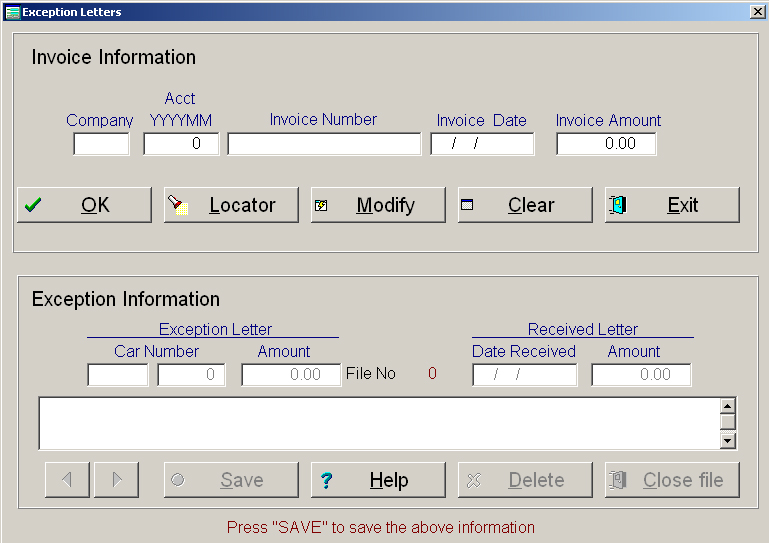
After all errors have been moved to the exception file, you are ready to edit or print your exception letters. The exception letter control file can be found by going to Audits, Exception Letters, Letters. Here you can select Input, Generate, Over 90 Days, Date Stamp. Input will allow you to create or edit an exception letter. By selecting Locator, the system will display a summary of all exception letters. Simply highlight the file number you want to edit and it will appear on the screen. The top of the screen is the invoice header information. The bottom of the screen shows each car in the exception letter. By selecting the arrow pointing to the right, you can move down one record, the arrow pointing to the left allows you to move up one record.
This screen is also used for whenever a company answers an exception letter. If the company sends you a CBA, Counter Billing Authority, then enter the date and the amount on the bottom screen and press the Save push button.
After you have completed all your entries and edits, you are ready to print your exception letters. By selecting Generate, the system will print all exception letters with header information and addresses. After you print out the exception letters and are satisfied that everything is how you want it, then press Date Stamp.
Once a month you should go to Audit, Exception Letters, Over 90 days Old. This will print out all exception letters that are over 90 days old for you to send out as tracers.