The Rail21 program is designed to manage any and all Contract Shop estimates and invoices. In order to control all the estimates and invoices from contract shops, you must first have the full address of each shop in the rolodex file with the responsibility of Shop checked.
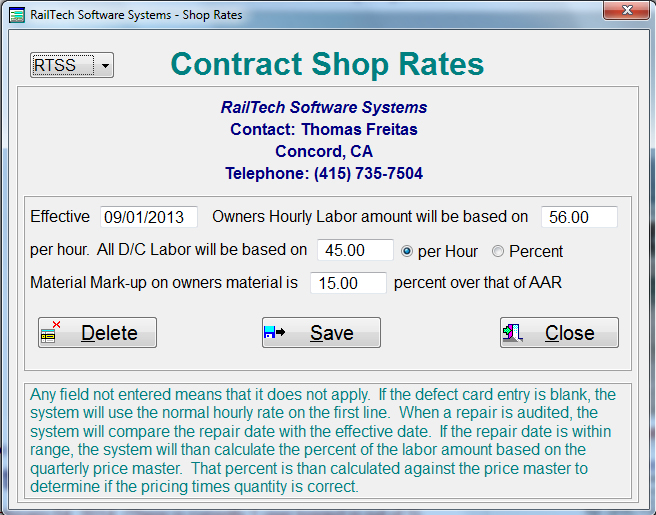
Next you will need to create a shop rate file for that shop. This file will keep track of what the shop charges your company for labor, material as well as defect card repairs. Below is an example of a shop rate file;
Once you have a shop in the rolodex as well as in the shop rate file, the system is now ready to start controlling all the shop estimates and invoices. In order for the system to start performing this function, you must turn it on. From the main menu, click on Files, Shopping's, Estimates, Estimates Turned OFF, which is the default. The system will now inform you that the Contract Shop Control Estimates/Invoices are now ON.
Now that you are ready to start accepting estimates and invoices from the shops, you must make sure that each shop sends you a 500 byte data exchange file for each estimate first. The data exchange file can have as many cars that they want. When you upload any data exchange file, the system will always look in the "Shop Rates" file to see if the company is in the file. If the company initials are in the Shop Rates file, than those records will automatically go into the CSC Upload file.
If the invoice number is Blank or has the work QUOTE in it, the system will automatically stamp the file as an estimate. If it is not blank or does not have the word QUOTE, than the system will flag it as UNKNOWN. When you start the Contract Shop Control Upload system, it will display all the file as shown below;
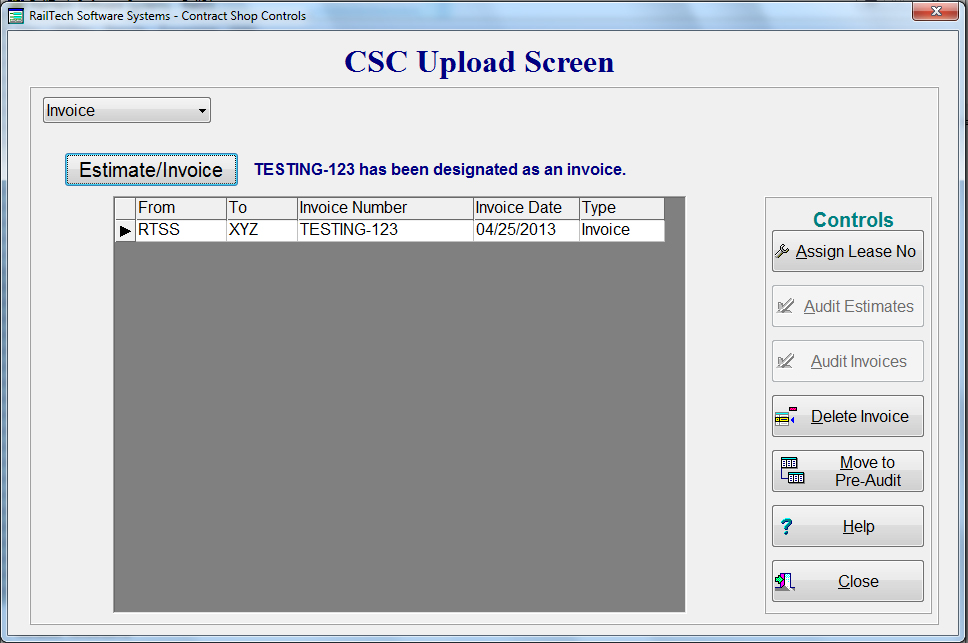
This screen can hold as many invoices and/or estimates that you can upload. The top left pull-down allows you to taoggle between invoice listing, to detail cars in the invoices or just the UNKNOWN types. When you click on any line you can change it from an Invoice to an Estimate or an Estimate to an Invoice by clicking on the Estimate/Invoice push button.
When the "Assign Lease No" push button is clicked and all cars have an assigned lease number, than the Audit push buttons will become activated. If any cars do not have an assigned lease number, than you must either have the shop correct their estimate and delete it from the file or correct the equipment and lease file so that the cars are assigned to a lease.
When an audit is performed on an estimate, the system will validate all lines of repair just like it does with railroad repairs. It will also validate all amounts of money according to the "Shop Rates" file. If any error is detected, the system will write the error on the line of repair. Once the audit is complete, the system will transfer all estimates to the CSC Estimate File.
When you perform an audit on an invoice, the system will first validate that you have an estimate that is 100% approved in your CSC Estimate File. It will than validate that each line of repair is exactly the same on the invoice as it is in the approved estimate, including the charges. If any line is not the same as the approved estimate, than the invoice is declined until the invoice and approved estimates match. An invoice can have more than one car, however, if any line does not match, the entire invoice is declined.
If an invoice matches all the estimates, the invoice will than be transferred to the pre-history file and the estimates will than be removed from the CSC Estimate File. Any determined rebuttal billing will also be copied to the rebuttal file for futher handling.
The system also has an option to by-pass the entire estimate process by pressing the "Move to Pre Audit" push button. This function will allow you to move an invoice to pre audit only after it has been flagged as an invoice. If an invoice is moved to the pre audit file, than it will be processed like any other invoice. Any invoice in the Pre Audit file that is also in the "Shop Rates" file will have the prices validated based on the instructions in the "Shop Rates" file.