Remember, if you are not a lessor or a lessee, then enter your company as both for a single lease! This will simply allow the system to manage the equipment with a control of who owns it.
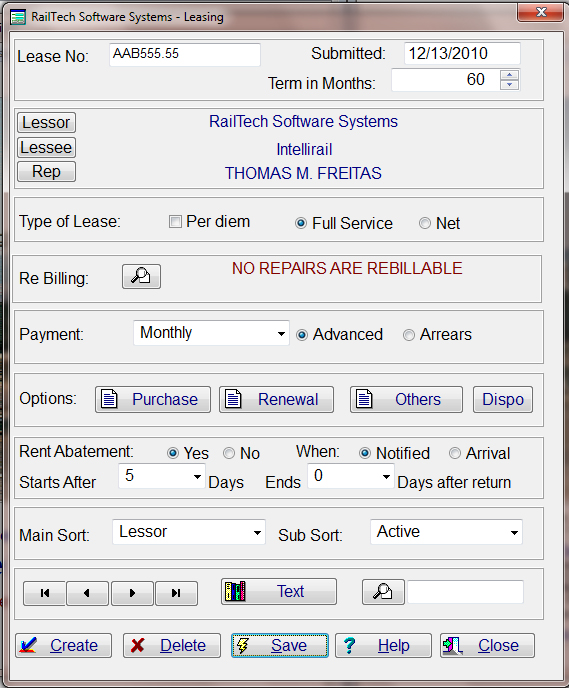
Lease Main Screen: The next screen that needs to be entered in, is the Lease file. At the very least, you need to enter the lease number, submitted date, term, Lessor and Lessee. Once you have finished enter all the information required, press the "Save" push button and the lease information is now stored.
The first screen of the the lease file allows for the input of the type of lease, how the payments are made and when. If there is rent abatement and when rent abatement starts as well as when it ends. The leases, when viewed, can be in order by lessor or lessee and then within that order, by Active or All Leases.
The main concept to the equipment file is that every car is assigned to a lease. That even means that if it is not currently assigned to a lessee, it must still be assigned to a lease number. In those cases it is suggested that you assign a lease number for storage of cars. A lease number can be called HOLDING or if you have multiple Lessor's you may want to call the lease number HOLDING with the first four positions being the lessor's initials. EXAMPLE: XYZ-HOLDING. This will allow you to know what cars you currently have that are available. Another suggestion could be that you give the company name in the rolodex file a name such as HOLDING. That way the Lessor's or Lessee's company name in the Lease file would state that this is a storage lease and not assigned to any specific lessee.