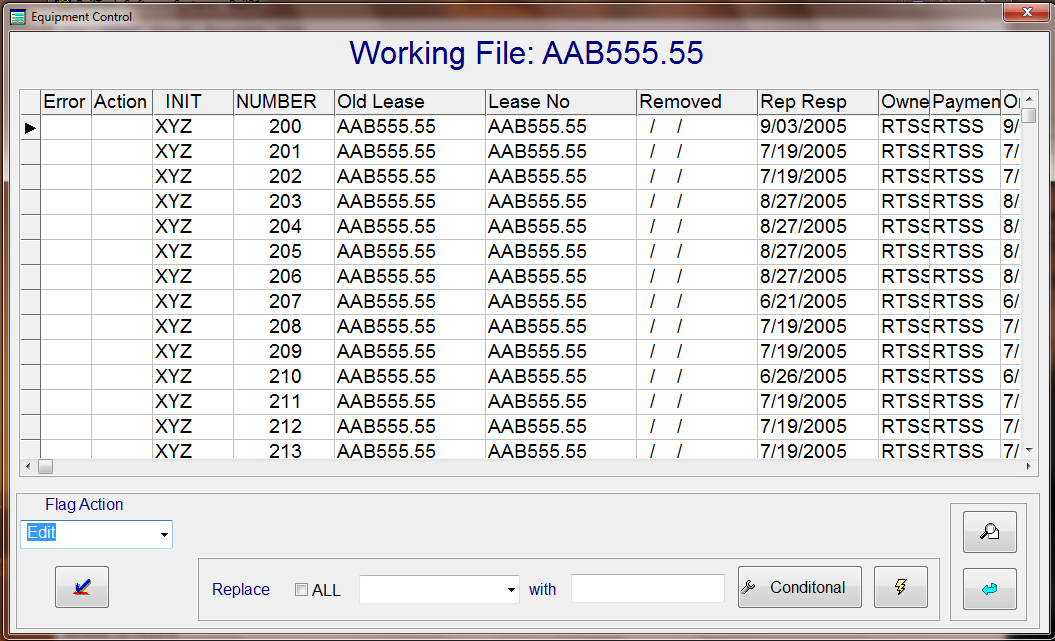
Editing a Working File: The edit screen looks very much like a browse screen, see below. There are curtain fields that can not be changed, such as the old lease number and the lease number. The first field you see is the ERROR fields. There will be an "X" in this field if after you updated, the system finds an error with your changes. If the old lease number and the lease number are the same, then you can only "Edit", "Destroy","Sold","Retire/Scrap" or "Blank" the action field. The ACTION field tells the system what to do with that specific line item. If you are moving a piece of equipment to another lease or taking the equipment off lease, because of it being "Destroyed", "Sold" or "Retire/Scrap", then you must put in a removed date. The remove date, when changing to another lease, is used for the current lease. If a car goes on lease AABB5555.55 from another lease, then it needs a removed date from the old lease number.
There is a nice utility that will help you change a number of records at one time. By checking the ALL check box, then selecting the field you want and put in what you want to change it to, then the system will do that for you. You can also select conditions by pressing the conditional push button. If you wanted to change the repair responsibility date, REP_RESP, to be 10 days after the on rent, ON_RENT date, you could do the following: Check ALL, then select REP_RESP from the pull down, in the with area type: ON_RENT+10. Another example would be if you wanted to change all the car numbers to a series that starts with 1001, you would enter the following: Check ALL, then select CAR_NUMBER from the pull down, in the with area type: 1000+RECNO(). IMPORTANT: All Characters fileds must have quotes," ", around the word, all date fields must be entered with {} around the dates, example: 02/03/2001 would be {02/03/2001}. If you enter an on rent date, but not a repari responsibility date, the system will automatically put in the on rent date plus one for the repair responsibility date.