Retrieving Cars into a Working File: Now that you have created a working file, you need to retrieve cars into that file so that you can change each record the way that it needs to be changed. Remember, this is only a working file and does not affect the car file until you peform and update.
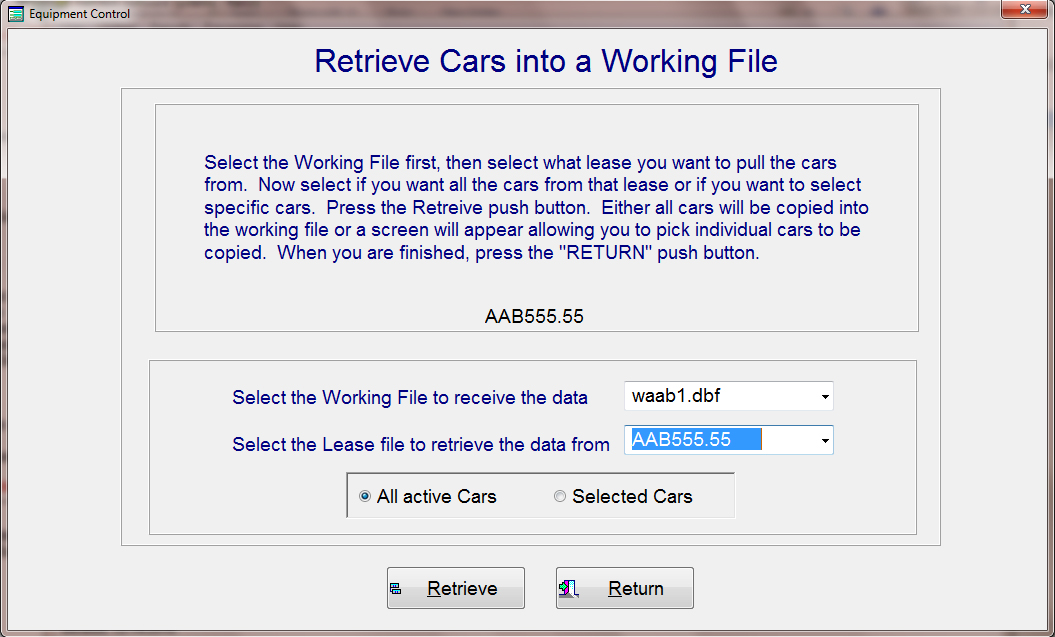
By select "Retrieve", from the Modify Equipment main menu, the Retrieve Cars Screen below will appear. Note that the working files show the actual working file name, such as aab2.dbf. Whenever you highlight a working file, the actual lease number will appear to the left as shown below. After you have selected the working file, then select what lease number that the cars are in that you want to retrieve into this working file. The lease number, AAB5555.55 could, as an example, be a new lease that you want to move cars into from another lease, or you may want to edit some fields in the current lease, like on rent or you may want to remove equipment because it was sold or destroyed.
After you have selected what lease number you want to get the information from, you have a choice of selecting all cars in that lease or select only specific cars from that lease. Once you are finished, press the "Retrieve" push button. If you selected all cars, then all active cars that are in the lease you are retrieving from will be copied into the working file.