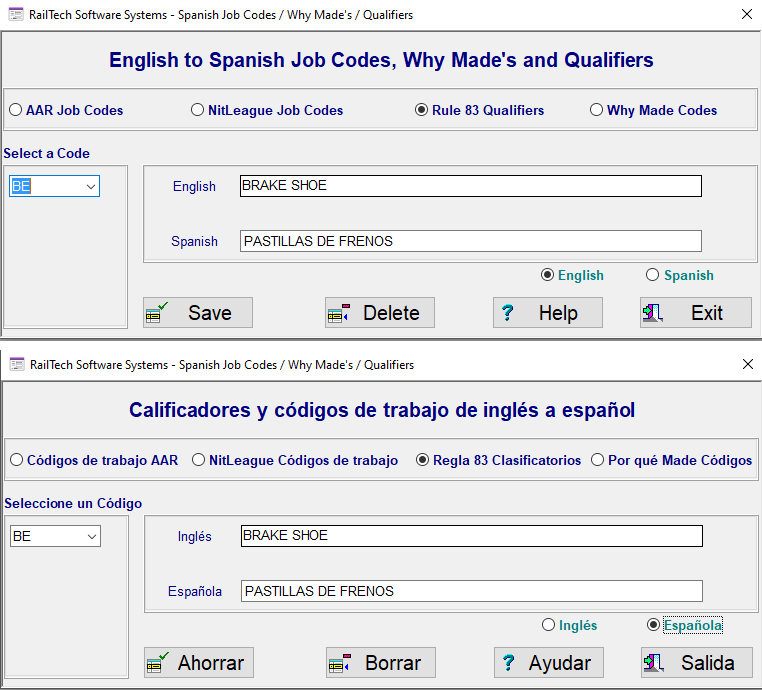
This screen is for a user to enter the Spanish Conversion of one or more Job Codes, Why Made's or Rule 83 qualifiers that can be used in work orders, estimates, JIC's and invoices.
Do the below if you want to be asked to convert a work order so that it shows the Spanish conversion in the description;
1. Go to Utilities
2. Click on Your Company's Profile
3. Click on Options
4. Check the Box at the bottom right that states "Ask if you want BRC or Estimate in Spanish"
5. Press the "Save" push button
In order for the program to convert the description of job codes why made's and qualifiers into Spanish, you must enter the Spanish conversion. Click on Files, Coding, English to Spanish Job Codes / Why Made's / Qualifiers and the screen will appear.
At the bottom of the screen are two radio buttons, one for English and one for Spanish. Depending on which language you would like to screen to be in. You may switch from one language to another at any time. The picture above shows how the screen appears in English and in Spanish.
First select which file that you want to use, AAR Job Codes, NitLeague Job Codes, Rule 83 Qualifiers or Why Made's. Once you select which one you want, the pull-down on the left of the screen will be populated with the items. You can scroll to the job code or qualifier that you want or you can simply enter it in the pull-down and press ENTER. If the job code or qualifier is valid, the English description will appear on the top and if there is already a Spanish conversion, it will appear below.
You can either edit or create a Spanish conversion by simply typing it in the Spanish entry field than pressing the push button Save.
The Delete push button will only delete the Spanish Version that is present!
The help will display a limited help screen in whatever language you had selected on this screen. However, you can overwrite the help screen to best fit your needs. If you overwrite the help screen, it will only change the help for the language you had selected and not the other.
Once you are finished, press Exit and the screen will go away.
* See Rolodex on how to make billing repair cards or estimates so that the description entered is in Spanish!