Creating External Invoices and BRC's
Overview:
There are some companies that require a copy of the invoice and brc to be sent to them in a readable format, such as PDF, MS Word and so on.
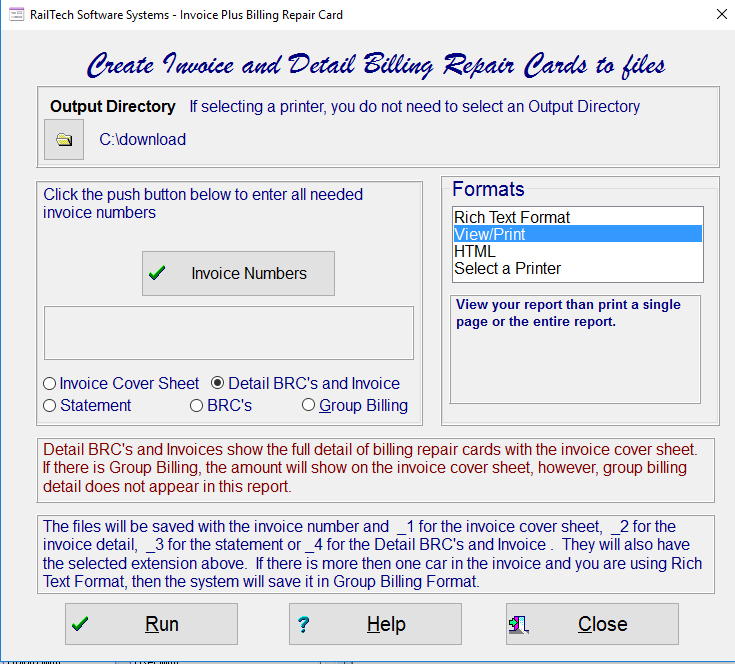
Once you have created an invoice and moved it to history, you can create an external file by selecting "Utilities", "Transfer Data", "Create External Invoice and BRC's".
Using the above screen, you need to first select the directory where you want the external files saved too. Then you will select what type of file to create; Rich Text Format, PDF, WKS, or HTML. The next step is to enter the invoice number(s) to create the files from by pressing the Invoice push button.
Once the invoice or invoices are entered into the list of invoices, all you need to do is select from the radio buttons if you want the Invoice Cover Sheet, Detail Billing Repair Cards or Invoice Statement. If you want two or more items, then simply press "Run", then when the creating is finished, select the next item and press "Run" again.
The Detail Billing Repair Cards will look exactly like the actual Billing Repair Cards in the invoice. The only exception is when creating a "Rich Text format" file. This MS Word format does not recognize the seperate headings and therefore is created in the Group Billing Format if there is more then one car. If there is only one car, then the report will be created in the normal Billing Repair Card format.
Entering Invoice Numbers
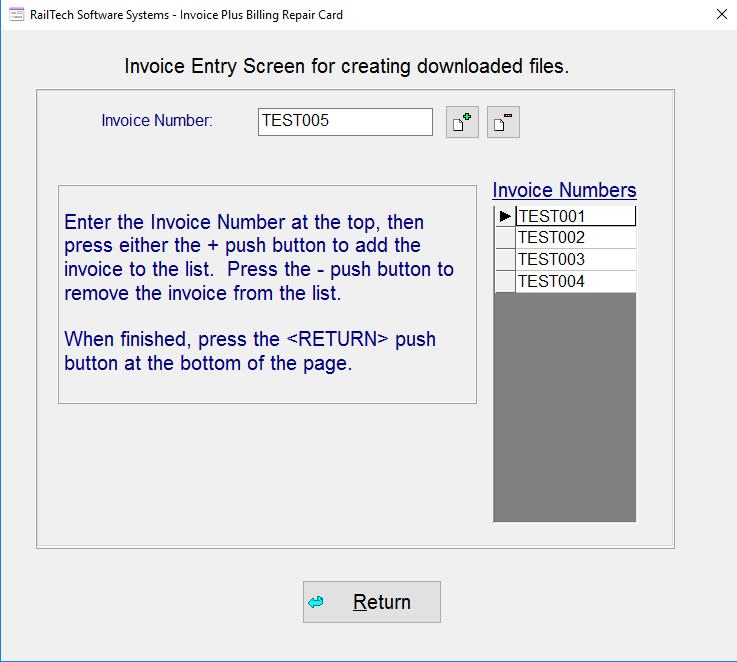
On the above screen, you enter the invoice number you want to add, then press the push button with the plus sign. The invoice number if validated and if correct is entered into the listed invoices below. If you enter an invoice number and decide that you do not want to create a report on it, then put that invoice number in the entry field and press the push button with the minus sign. The invoice will be removed from the invoice list. When finished, press the
Once the information you entered is completed and you press the "RUN" push button, then the system will create a temporary file of each invoice to create the external file with.
The name of the external files will always be the 1st 7 characters of the invoice number with a 1 added to the end for the invoice cover sheet, a 2 is added to the end for the detail billing repair cards and a 3 for the statements. Example: If the invoice number is DEMO1, and you select the MS Word format, "Rich Text Format", then the invoice cover sheet would be DEMO11.RTF, the detail billing repair cards would be DEMO12.RTF and the statement would be DEMO13.RTF.
There is only one exception to the above. 1. If the invoice number contains a space, then the system will inform you that the file names will be INVOICE1, INVOICE2 and INVOICE3 with the extension for the file format selected. This is only because file names can not have spaces.
This feature will work much faster then going through the report screen. The invoice is validated using indexes and is very fast doing this. So as time goes by and your history file becomes much larger, the speed in getting the the invoice information should remain constant.