Pricing Inventory

When in the billing repair card screen, the default for
pricing is always NO INVENTORY, AAR Job Codes,
It is very important to understand that if you are using
inventory and the inventory is designated as something other than


There are 10 different ways to price inventory, from Using Inventory and Pricing Inventory to Using the Customer Inventory Time Standards and Pricing using the AAR Labor Price with the Customer Discount. The first thing that must be done is to select the proper inventory pricing that you want to use.
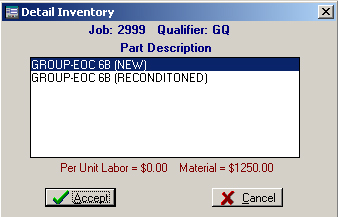
If you have added parts for a job code in the inventory file
and you are using Use Inventory Price
Inventory or Use Customer Inventory
Price Customer Inventory, then the above screen will appear. This screen allows you to choice a part
within the job code that is in the inventory file. The above example could be for job codes
2999 with GQ qualifier. 2999 would
be for coupler, yokes, draft gear and such, GQ is for Cushioning Unit. Within those selections there might be
10 other selections. This function
is designed just for that!