Other BRC Features
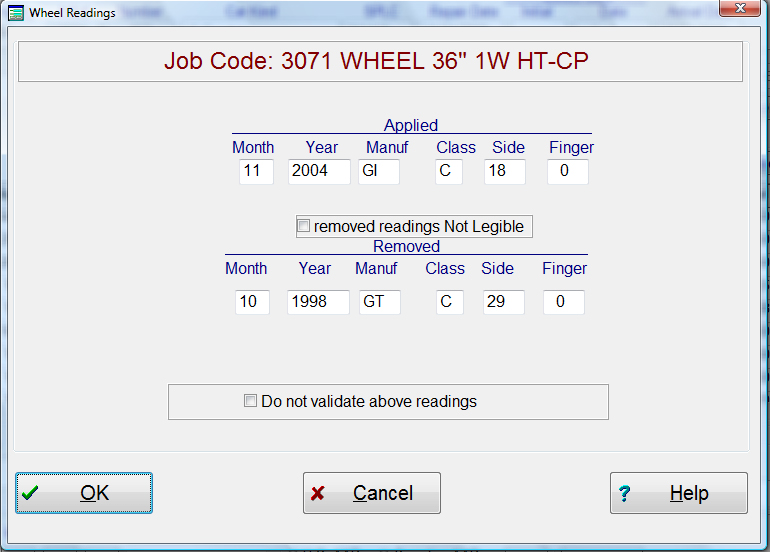
When a wheel repair is entered on the billing repair card entry screen and you move to the next line, the following screen will appear. This screen requires that the data be entered correctly. The month, year must be a logical entry. The system will verify that a correct Manufacturer and correct Class for the job code is entered. It will also validate that the side and finger readings are logical.
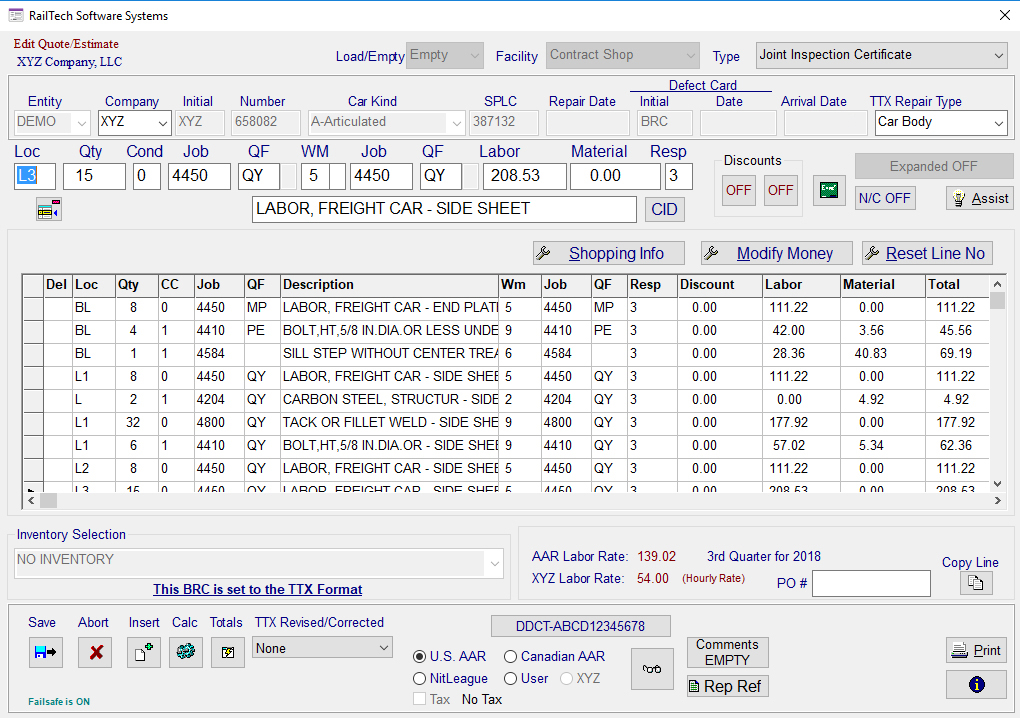
The push button in the Price Master and/or Job Code area is for viewing any job code file or the Rule 83 Qualifiers. Simply press the push button, select from the list which file you want to view and press the “OK” push button.
The push button marked with the “?”, is for viewing the help screen. The push button with the calculator will bring up a calculator that you can use. The billing repair card is a continuous flow of records that you can move up or down at will. If you click on any line, the information on the line will appear in the entry area for editing.
If the billing repair card has been stamped with a P.O. Number, then that P.O. Number will appear in the PO Number box at the bottom right of the screen. Once a P.O. Number is designated for a repair card, it will stay with that repair card. The PO Number can be changed or removed at any time during the editing of a billing repair card.
If any line of repair has a 3 responsibility code to it, the system will verify that the defect card initials and defect card date are on the billing repair card. The system will also check to make sure that the repair type is one of the following: “Defect Card”, “Joint Inspection Certificate”, or “Destroyed Car”.
The printing order of a billing repair card can be either by Default Order or Entry Order, which is selected from the Customer Profile. The push button at the bottom with a green plus sign on it, allows you to insert a line under the line you are currently on.
The lightning push button will display the current total charges of the billing repair card. These charges will be broken up into Discount, Labor, Material and Total Amount.
If this car is in the shopping file, the push button with the I inside the blue circle will display all the shopping information.
If the line of repair is to be zero charge, you can press the push button “N/C OFF”. This will turn the text in the push button to read “N/C ON”, which will display in red.
The system is designed so that you can overwrite the description, discount, labor or material charges.