Job Code File
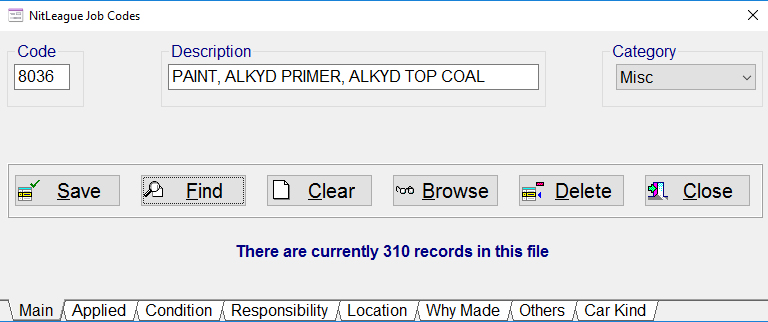
You can create, edit, delete job codes from the following Job Code Files; NitLeague, Default User, and Customer Specific.
This file controls most of the rules pertaining to a job code. When you enter a non
Modifying a Job Code
To edit, enter a job code and press the "Find"
push button. Once you have entered a job code, description and selected a
category from the pull down, you then need to select each of the tabs
below. This first screen,
Main Page, allows you to enter a new job code and/or change the description as
well as assign a category of repair to this job code. The tabs are where you define all the
conditions to each job code. After all conditions have been entered, go back to
"
Applied Tab:

When you select the Applied Tab at the bottom of the screen, all job codes that can be applied if the designated job code is the removed job code will appear on this screen. If you wish to allow any job code, then this area is left blank. To add a job code to the list, write in the job code in the entry field then click on the right arrow push button to add it. The job code must be four numbers in length, so you must add leading zeros for all job codes under 1000. If you want to remove a job code from the list, type it in the entry field and click on the arrow point away from the list.
Condition:
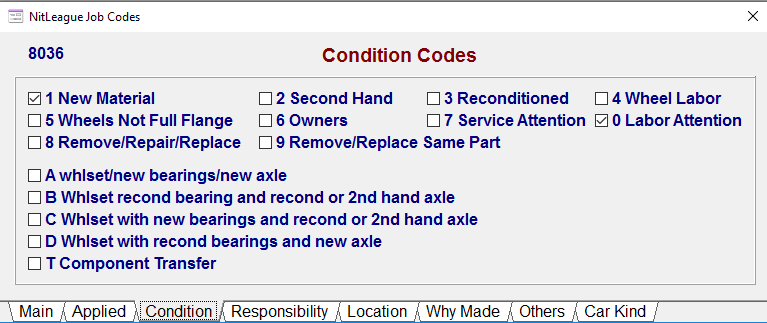
When you select the Condition Tab, all the possible condition codes for the designated job code will appear. Check any possible condition code for this job code.
Responsibility:
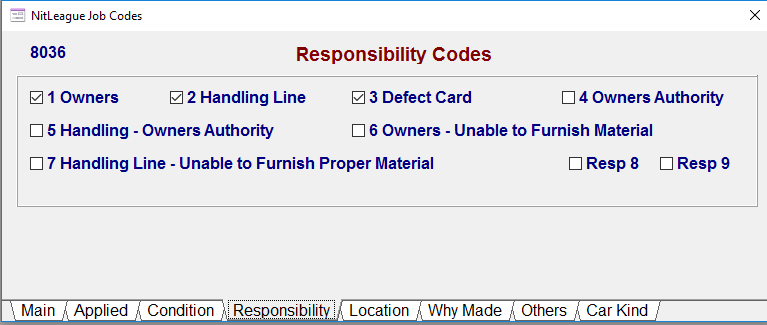
When you select Responsibility, the screen will display all possible responsibility codes. Check all codes that applied to the designated job code.
Location:
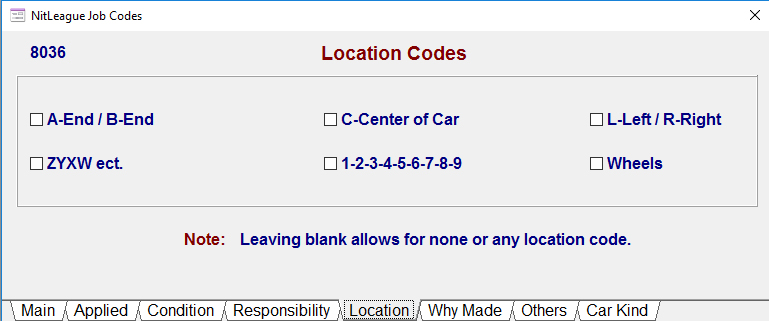
When you select Location, the screen will display all possible location codes for the designated job code. Check all boxes that apply. The ZYXW is for articulated cars, see Rule 83 of the Field Manual. If you do not select a location check box, then the location field on the billing repair card will accept blank or any location code.
Why Made:

When you select Why Made, the screen will display all possible why made codes for the designated job code. To add a why made code to the list, enter the desired why made code in the entry field and press the right arrow. The why made code must be two digits, so if the why made code is less then 10, you must add leading zeros. If you want to remove a why made code from the list, type in the code to remove and press the arrow pointing away from the list.
Others:
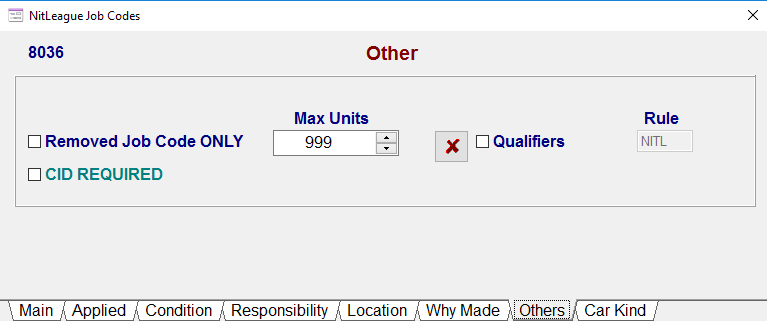
When you select others, the screen will display other rules that may apply to this job code. If this is a removed job code only, then that check box must be checked. You can also show the maximum number of Units or Quantity that can be applied. If you check the box, Qualifiers, then the designated job code must have a qualifier. The push button with the red X is to designated specific qualifiers for this job code. If you do not use the red X, then the billing repair card will except any qualifier, number or letter. If you are modifying the User or Customer job code file, then the rule will always be USER. If you are modifying the NitLeague job code file, then the rule will always be NITL.
Qualifiers:

If you require that only designated qualifiers can be used for this job code, then enter the qualifier in the entry field on the left and press the right arrow. If you want to remove a qualifier, then enter the qualifier to be removed in the entry field and press the arrow pointing to the left.