Update and Upgrade instructions for all programs
This screen will show you how to update your program using our updating system. In the example below, it shows how to update or upgrade the Mars21 Billing System, however, it works the same way for all of our systems.
In the below sample, we are assuming that the program is in your c: drive in a folder named mars21 or c:\mars21
The first screen that appears is the welcome screen, as shown below.
The second screen that appears is the welcome message with instructions. Once you read the instructions, press the Next push button at the bottom right of the screen.

Now comes the first item for installing the update or upgrade. Here you enter the full path to where the program is located. As I stated above, we are assuming that the mars21 program is located at c:\mars21. Once you enter the full path, press the Next push button at the bottom right.
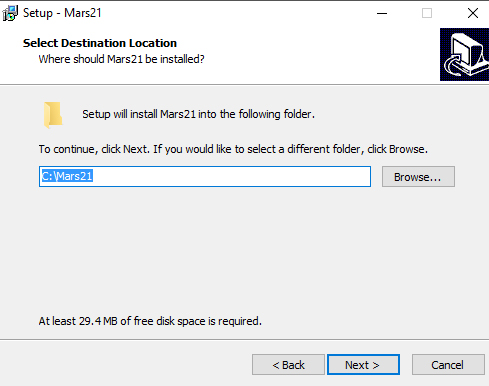
This next screen wants you to enter the name of the folder only. In this example, the folder is mars21

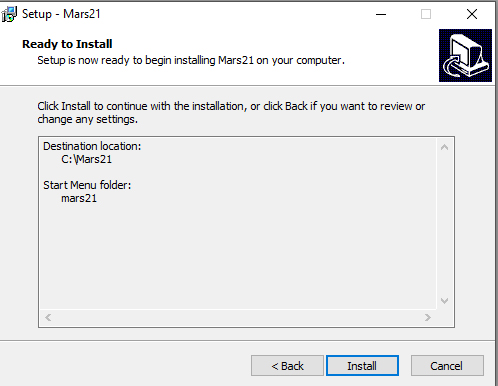
After you press Next push button above, the screen below appears showing you what you selected, if all is correct, press the Install push button at the bottom right and the program will display the installing progress.
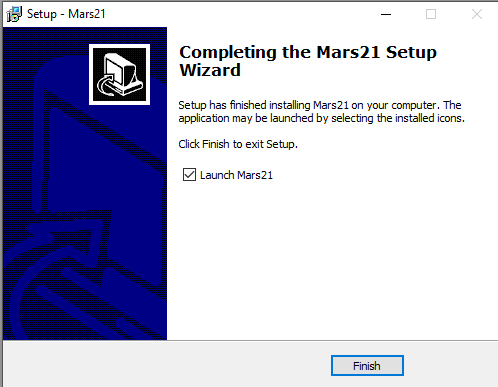
The last screen in the update, upgrade installation, is the completion screen. There will be a check box to Launch the program when finished. You can click it to remove the check